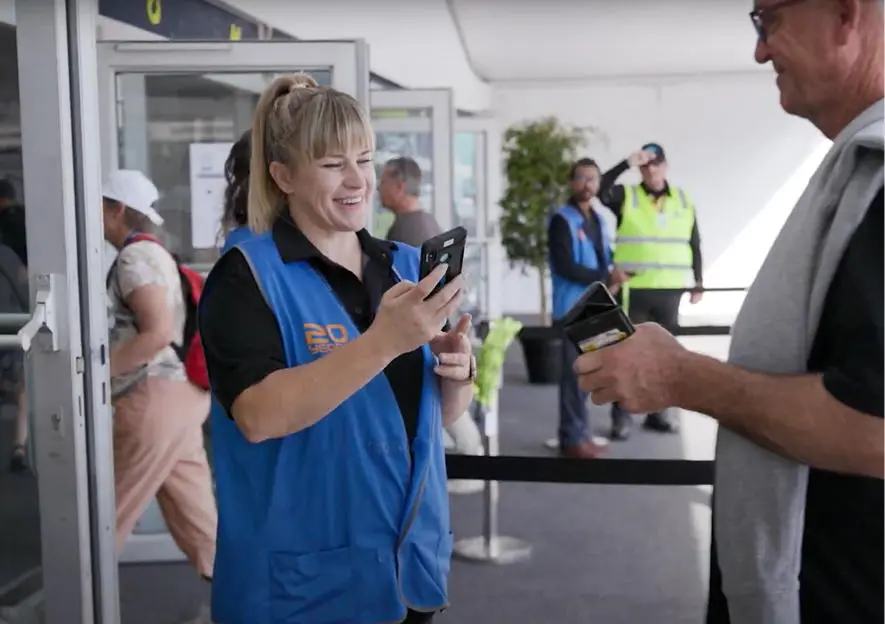
A free ticket scanner app for your event
Turn any iPhone or Android phone into a ticket scanner. Your door team scans tickets, finds guests whose barcodes won't scan and checks live numbers, with every entry kept in sync.


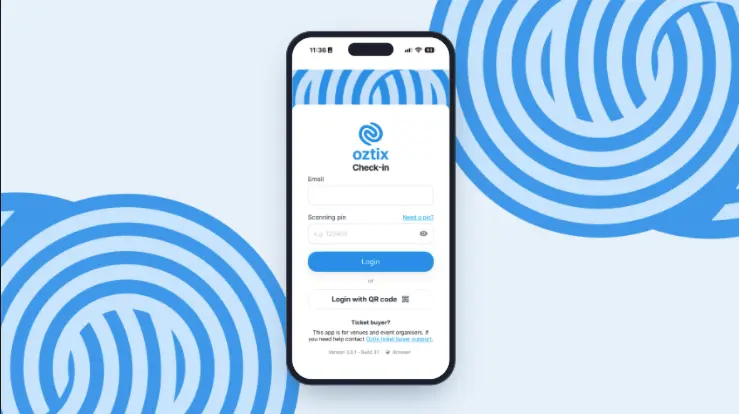
Turn any iPhone or Android phone into a ticket scanner. Your door team scans tickets, finds guests whose barcodes won't scan and checks live numbers, with every entry kept in sync.
The new-look Check In app is out on Android, with iOS coming in December.
Oztix venues and organisers can track entry times and attendance with our free app.
Scan tickets with your phone
Tap Tap to scan and point the camera at the barcode or QR code. A valid ticket shows the guest's name, ticket type and Check In time, so your staff know straight away who to let in.
Keep every entry in sync
Run as many phones as you need. Check Ins sync across every device scanning the same event, so one ticket can't get in at two gates. New sales come through every few minutes while tickets are still on sale.
Find guests whose tickets won't scan
Cracked screen, faded printout, no battery? Tap Can't scan barcode to search by the barcode number or the guest's name, or search the Guest list tab by email. Check them in with a tap.
See who's arrived
The Stats tab shows checked in, checked out and outstanding guests as counts and percentages, filtered by ticket type if you need it. Tallies let you count entries that aren't tickets, like pass-outs or walk-ins.
Send people to the right door
Set a phone to accept only certain ticket types, like VIP at a separate entrance. A ticket rejected by that filter isn't fake. It just belongs at another door.
Talk to your other doors
The Messages tab sends a note to every phone scanning your event. Handy when the main gate needs to know VIP is open.
Tip: settings are saved on each phone, not your account. Set every door phone up the same way. We recommend turning on Search by email, Search by guest notes and List all guests.
Leave these alone on the night: keep Simulate offline off, because it stops the phone syncing with your other doors. Don't use Reset unless we ask you to.
Oztix Check-in has been redesigned to match the rest of Oztix and rebuilt on a newer, more secure base. That also means it installs on recent Android phones, which the old version couldn't.
How it works hasn't changed. Same login, same event download, same scanning and syncing, so your door team doesn't need retraining.
Why sync first? If a phone updates while scans are still waiting to sync, those scans can get stuck on the phone and never reach us. The tickets could then be scanned in again. Update a day or more before your event, not at the door.
Use your scanning pin, not your Studio password. If you've just set the pin, give it up to five minutes.
Check it's in Studio, linked to your account and within seven days of today.
Turn on List all guests in Settings.
Turn off Continuous scan and Kiosk self check-in when you don't need them, and keep a charger at the door.
The phone has lost wifi or mobile data. Check its connection so your other doors can see its check-ins.
Log back in and download the event again.
Call us straight away with the event name and the phone you used. Scans waiting to sync when a phone updates can get stuck on that phone.
A free ticket scanner app for Oztix venues and event organisers. Your door team uses it to scan tickets, look up guests and track attendance on iOS and Android.
Yes, for events ticketed through Oztix.
No. It's for door teams only. If you're looking for your tickets, check your emails or check out our FAQ page.
As many phones for as many as your doors need. Every phone scanning the same event stays in sync.
The scanning pin is a six-digit code just for the Check-in app, so you can sign in door staff without sharing your Studio login. Set or reset it in Studio, or tap Need a pin? in the app.
Yes. The app reads the barcode or QR code whether it's on a screen or on paper. If it won't scan, search for the guest instead.
Yes, if the wristband carries an Oztix barcode, including barcodes we've loaded from another system with a couple of business days' notice.
That phone probably has a ticket type filter on. Check Filter on the Scan tab.
Yes. Turn on Checkout in Settings to scan guests out, then scan them in again when they return.
It has a new design and a more secure base. Everything works the way it did. See "A fresh new look" above.
No. Everything is in the same place.
Download the Oztix Check In guide here.
Need more than the app on the night?
Hire scanning devices for your doors, get help planning entry for a big event, or have our onsite team run your gates for you, with scanning staff and an event-day lead. Tell us about your event and we'll work out what you need.
Already set up and need a hand with the app? Email admin@oztix.com.au or call Client Services on 07 3503 6806, 9am to 5pm AEST.